9.3.1 Manage an order
The Order Management process flow is as follows:
Item order requests 🡪Cancel or Approve items 🡪 Assign PO number 🡪 Generate PO Document 🡪 Order by sending PO to Seller 🡪 Receive Delivery or Cancel order
- Once items have been added to the order list they can be approved or canceled. Approval of an item depends on the total cost of the item (see sections 9-1-1 and 9-1-2). Once approved the requester will be notified by email. Add items that you want to order by clicking on
 and write the internal PO number or use
  to create one. PO number assignment remains optional.

PO numbers
Go to: Admin 🡪 Preferences 🡪 Reagents and Supplies

|
|
|
All items sharing the same PO number are gathered on the same PO form. PO numbers cannot be reused after a PO has already been formatted |

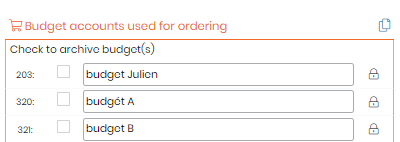
- Each ordered item can be assigned to a budget reference.
|
|
|
You can manage budget accounts through Preferences 🡪 Reagents & Supplies 🡪 Budget. Budget assignment can be made mandatory in Preferences 🡪 R & S 🡪 Associate budget to order. |


- If you have a discount on your product purchase, you can add it by filling
 icon.
icon.
- When your purchase order is done click on
 .
.
|
|
|
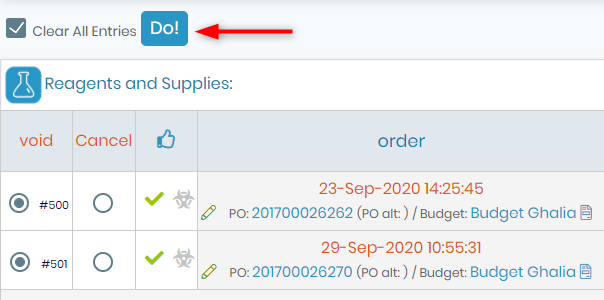
You can clean the whole list using “clear all”. Items go directly to “Past orders” if you confirm your action. |

If you use the Budgets Follow-up tool, once orders are requested, the amount will be added to this tool.
To do another order, use the same process.
- You can also manage the delivery by clicking on delivery when your products arrive. Then, click on
 , a window opens:
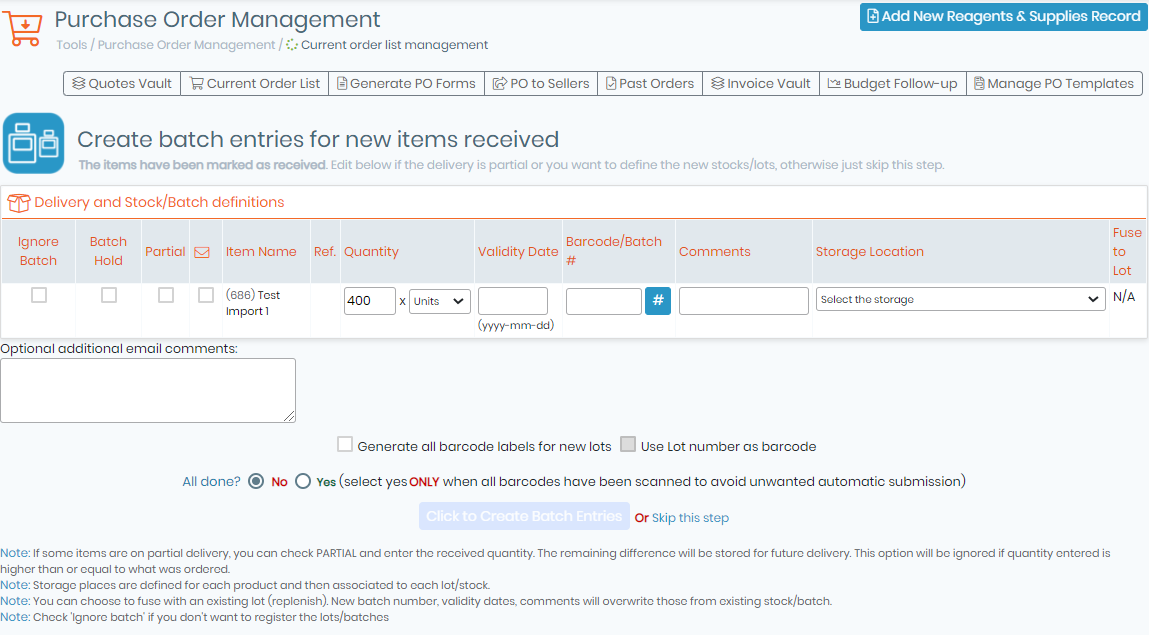
- “Ignore batch”: check this if you do not want to register the lot/batch.
- “Batch Hold”: check this box if you wish to keep the batch in quarantine.
- “Partial”: click on it if some items are on partial delivery, you can check it and enter the received quantity. The remaining difference will be stored for future delivery. This option will be ignored if quantity entered is higher or equal to the amount ordered.
 click on the checkbox under the envelope to send an email to the requester to alert them that their order has arrived.
- You can add item “Validity date”, “Barcode/Batch” and “comments”.
- You can also define "Storage location" and fuse this new lot with an existing one.
- “All done?”: choose between NO or YES (when all barcode have been scanned to avoid unwanted automatic submission).
- If you don’t want to fill out this form you can “Skip this step”.
- Once order is marked as “Delivery”, it is removed from order list and placed into the database.
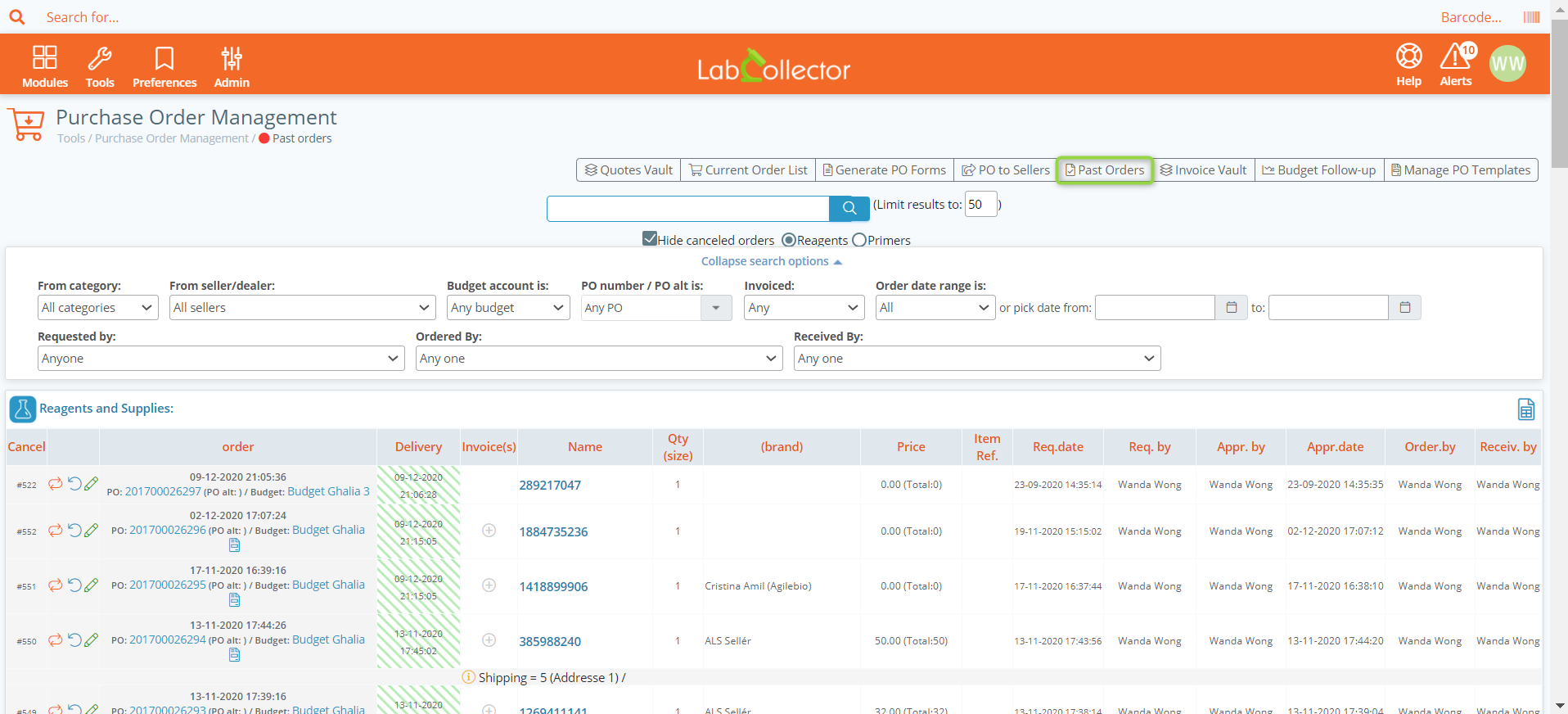
 This menu will give you access to browse or search the past orders history. You can also check for canceled orders. You can review PO forms and prices by order date. Several filtering options are available, including a free text keyword field and a date field to make a search on a defined period.
|
|
|
Records from Reagents & Supplies module cannot be deleted if present in order list (past or current) |

New!
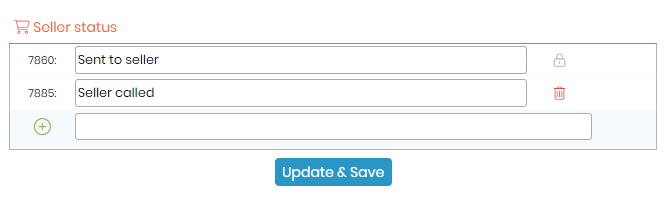
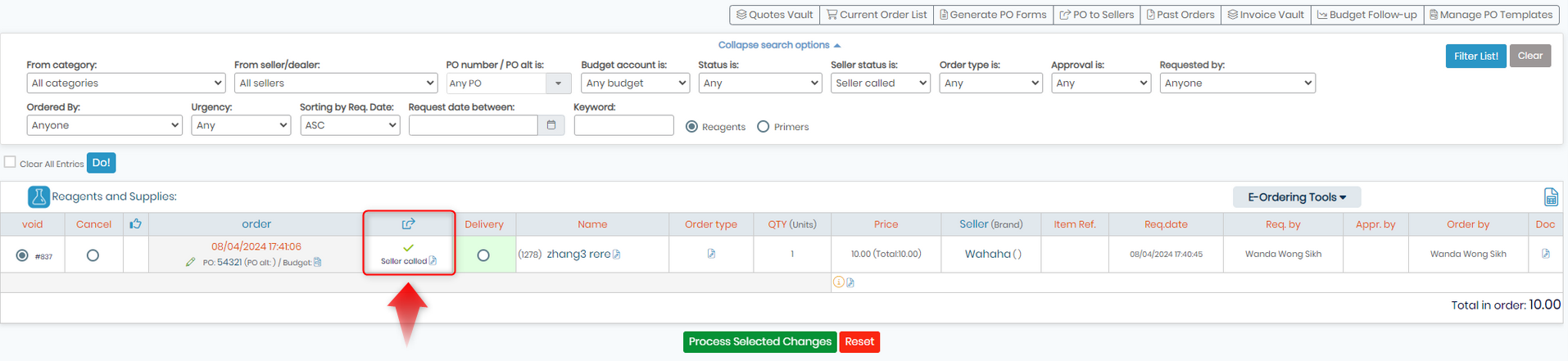
There is a new column the Order Status in the page Current Order List in Purchase Order Management, that allow the users to choose the status.
To configure this new column go to: LC > Preferences > R&S > Orders > Seller status create the different seller status like seller called or sent to seller. Go to Purchase Order Management > PO to sellers check the box send to sellers or email seller ant the column Sent to seller will be updated.