5.2.2.12 Follow up
|
|
|
Please note that the availability of the options within the follow-up section vary depending on the level you are in (Job, test or sample). |

When you click on the gear icon within your job list, you can access the Follow-up section which allows you to manage various options related to your job, test or sample.
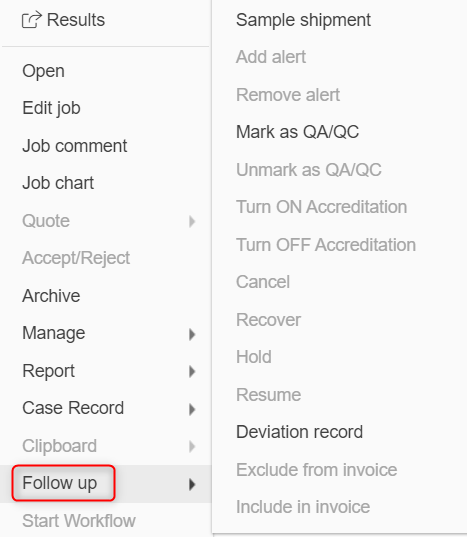
One of the options available is Sample Shipment, which provides all the necessary details regarding the shipping of your samples. Here, you can find information about the status of the shipment (either it's submitted, in transit, received, returned, disposed or sent to partner), the date it was submitted, the tracking number, and the user who submitted it.

Another option available in the Follow-up section is to add alerts. This allows you to set up notifications for certain samples related to the selected job, such as when a sample is received, processed, or whenever a change occurs within its status.
You can also mark your samples as QA/QC in this section.This option allow you to identify and keep tracking of the samples and corresponding values used as blanks/controls for the equipment/test. This option can be marked in the frequency that you need: monthly, weekly, daily or punctually. The following icon will appear right next to the sample selected as QA/QC. 
Another option is to turn ON/OFF accreditation. This is useful when you want to indicate whether a particular job is accredited or not. This feature allows you to manage your accreditation status for individual samples, and to ensure that your results are in compliance with the relevant regulatory standards.
Additionally, you can view the deviation record of a job in the Follow-up section. This feature allows you to review any deviations that occurred during the job and to take appropriate corrective actions.
You can also include or exclude a sample from your invoice. This allows you to manage the billing process for your jobs and to ensure that you are invoicing your clients accurately. If you decide to exclude the sample from the invoice, it will be marked as Free. This is important to note because it may affect your billing and accounting records. For example, if you canceled a sample because the client changed their mind about the test, you may want to exclude it from the invoice. On the other hand, if the sample was canceled due to a quality control issue, you may still want to include it in the invoice to reflect the work and resources that went into testing the sample.
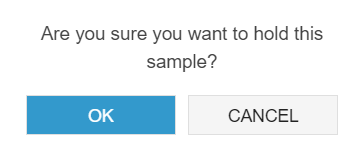
You can also choose whether you want to hold or resume a sample, when a sample is on hold, the following icon will appear next to it 
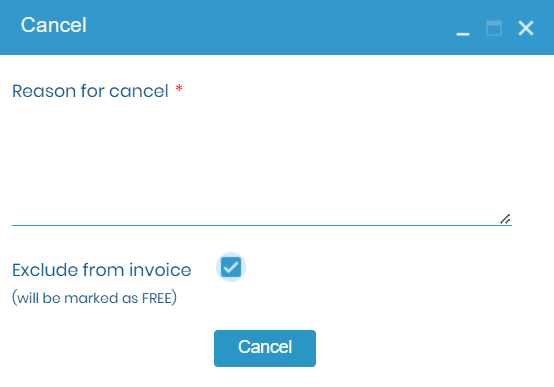
You also have the option to cancel or recover a sample. Once you cancel a sample, you have the option to recover it at any time, but you must provide a reason for the cancellation.
For example, suppose you are a laboratory manager and you have a job for analyzing water samples. By accessing the Follow-up section, you can track the shipment status of the samples, set up alerts to notify you when the results are ready, mark the job as QA/QC, and view the deviation record if any occur. You can also choose to include or exclude the job from the invoice and turn ON/OFF accreditation for this job, depending on your accreditation status.